Showing posts with label CentOS. Show all posts

Sunday, November 8, 2015

How to permanently mount folder in CentOS home directory with Ubuntu host shared folder in Virtualbox .


  In this post, I'm going to share on  How to  permanently mount folder in CentOS home directory with Ubuntu host shared folder in Virtualbox .

 If you want to mount folder in CentOS home temporarily, please visit my previous post .


What this tutorial will cover 

  1. Create a folder to  shareand configure Virtualbox in Ubuntu host .
  2. Create a folder to mount in CentOS home folder .
  3. Configure CentOS fstab file .

Steps

1) Create a folder to share and configure Virtualbox in  Ubuntu host.

1.1) Create a shared folder in Ubuntu host system.

Create a folder 

I named the folder "CentOS_shared" .
CentOS shared folder


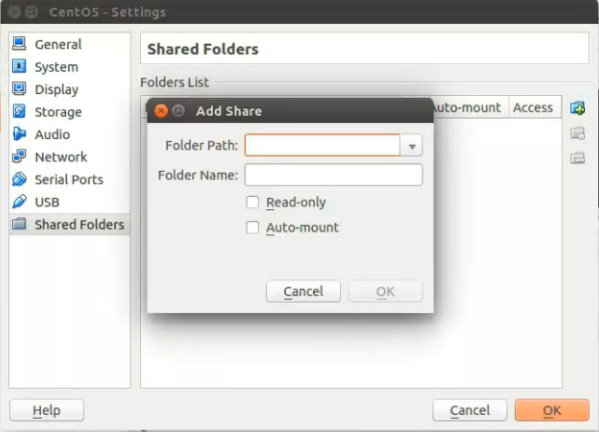
1.2) Open Virtualbox ,go to  "Settings> Shared folders" . Add the newly created folder in Step 1.1 . Click the "blue plus" sign to look for the folder .

Add  the created folder in Virtualbox
Look for folder location


1.3) Choose the folder and click "Open" .

Choose the folder

1.4) Click "Auto-Mount"  box.


1.5) Click "OK" .


1.6) Run  CentOS in Virtualbox. By clicking the "Start" button .


Note: By default, once you share the folder in virtualbox,you can access this folder in CentOS under  "/media" location .

2) Create a folder in CentOS home folder .


2.1) Create a folder  in CentOS home folder . In this example, i create a folder name "Ubuntu_shared" .
Create a new folder in  CentOS home folder

Ubuntu_Shared
/media/sf_CentOS_shared


3. Configure CentOS "fstab" file .

3.1) Open the fstab file .


3.2) Edit "fstab" file .

In the file, add below line .


You need to configure the "fstab" file base on what you configure in your system. Below is my CentOS system path and directory details .

/media/sf_CentOS_shared =(Ubuntu shared folder under /media ) 
/home/orca/Ubuntu_shared =(home directory share folder)


3.3)  Save the configuration and reboot your system.
Once rebooted,Ubuntu host shared folder should be mounted automatically and permanently with CentOS folder in home directory .


Sunday, October 11, 2015

How to share and mount temporary folder in CentOS home and Ubuntu host in Virtualbox .


  In this post , I'm going to share on how to share and mount temporary folder in CentOS home and Ubuntu host in Virtualbox .

What will this tutorial covered.

1) Create a folder and Configure Virtualbox in Ubuntu host .
2) Share and edit a file between Ubuntu Host and CentOS.
3) Create a folder in CentOS home and mount it  with Ubuntu host shared folder.


Steps

1) Create a folder and Configure Virtualbox in  Ubuntu host.

1.1) Create a shared folder in Ubuntu host system.

Create a folder 

I named the folder "CentOS_shared" .
CentOS shared folder


1.2) Open Virtualbox go to  "Settings> Shared folders" . Add the newly created folder in Step 1.1 . Click the "blue plus" sign to look for the folder .

Add  the created folder in Virtualbox
Look for folder location


1.3) Choose the folder and click "Open" .
Choose the folder

1.4) Click "Auto-Mount"  box.


1.5) Click "OK" .


1.6) Run  CentOS in Virtualbox. By click the "Start" button .


2) Share and edit a file between Ubuntu Host and CentOS.


2.1) By default, the shared folder is mount under "/media" in CentOS.

/media
the shared folder in CentOS is under "/media/sf_CentOS_shared"


2.2) Create and edit a file between Ubuntu host and CentOS .

Create a file in Ubuntu host


Edit file


Edit the file details

Check the edited file in CentOS

/media/sf_CentOS_shared


Check the file 


Edit the file
Check the edited file in Ubuntu host .


Note: By default, once you share the folder in virtualbox,you can access this folder in CentOS under  /media location but if you want to temporarily access with CentOS home folder , you need to mount the home folder with Ubuntu host  shared folder .I show on how to do it in below steps .

3) Create a folder in CentOS home and mount it  with the share folder.


3.1) Create a folder  in CentOS home . In this example, i create a folder name "Ubuntu_shared" .
Create a new folder in  CentOS home


3.2 ) Mount the folder  with the ubuntu host folder . Open terminal and run below command .


"id" command will give the user id and group that we need to use in the next command. Use this info to execute the next command .


This command will mount  "Ubuntu_shared"(CentOS home) folder  with "CentOS_shared" (Ubuntu host) . "uid" and "gid"
are the user id and group id value respectively.


Once you configured , "Ubuntu_shared" folder will be accessible  from  Ubuntu host folder "CentOS_shared"

Ubuntu shared folder 


Edit file in CentOs home folder


Edit the file


The file will be updated in Ubuntu host .

To make the folder in CentOS home permanently accessible, you need to configure "fstab"   which you can find on my other post .

Read Next : How to permanently shared folder in CentOS home directory with Ubuntu host shared folder in Virtualbox .

Read Previous : How to install CentOS Guest Addition in Ubuntu Virtualbox

Thursday, August 13, 2015

How to install CentOS Guest Addition in Ubuntu Virtualbox


 In this post, I'm going to show on how to run CentOS Guest Addition in Virtualbox .

STEPS
  1. Install system dependencies .
  2. Update system kernel .
  3. Install  Guest Addition .
  4. Reboot .
1. Install system dependencies .

1.1 Install development tools


1.2 Install additional repositories


1.3 Install Dynamic Kernel Module Support (DKMS)


2.Update system kernel .


2.1 Update current system kernel


2.2 Reboot


3.Install  Guest Addition .

3.1 Unattached and Re attached VBOXADDITON cd image

Go to home and un attached the VBOXADDITION driver
by clicking the right hand side sign


Re attach the image . Go to 
"virtualbox panel >Devices> insert Guest addition CD imange"


3.2 Run the pop up menu

Click "Run" on the pop up menu  and  key in your super user password to proceed with installation.


4.Reboot

Reboot your system and  CentOS should run in Guest Addition mode.


Read Next : How to share and mount temporary folder in CentOS home and Ubuntu host in Virtualbox
Read Previous : How to set CentOS static IP using Graphical User Interface (GUI)